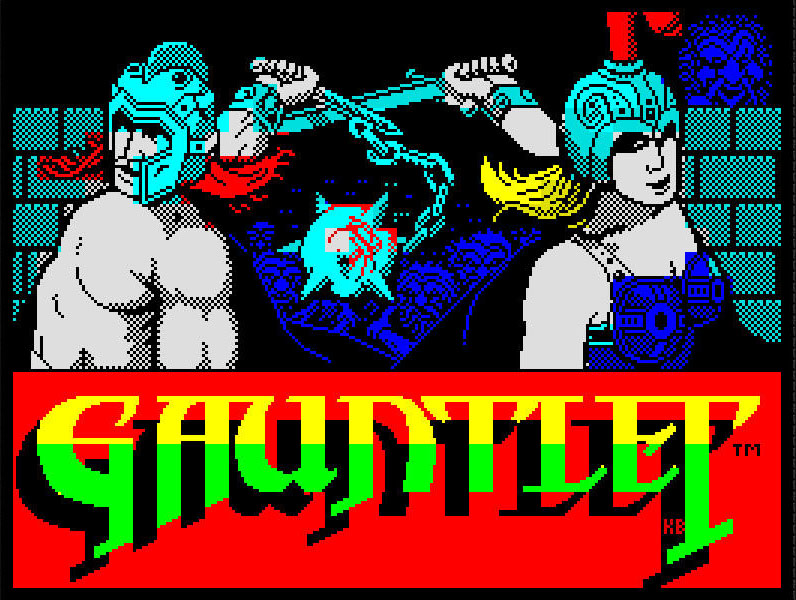
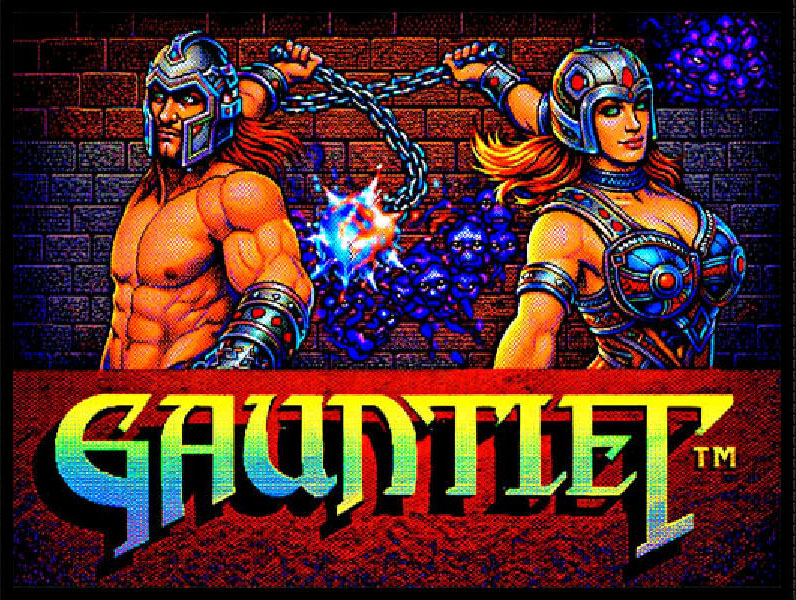
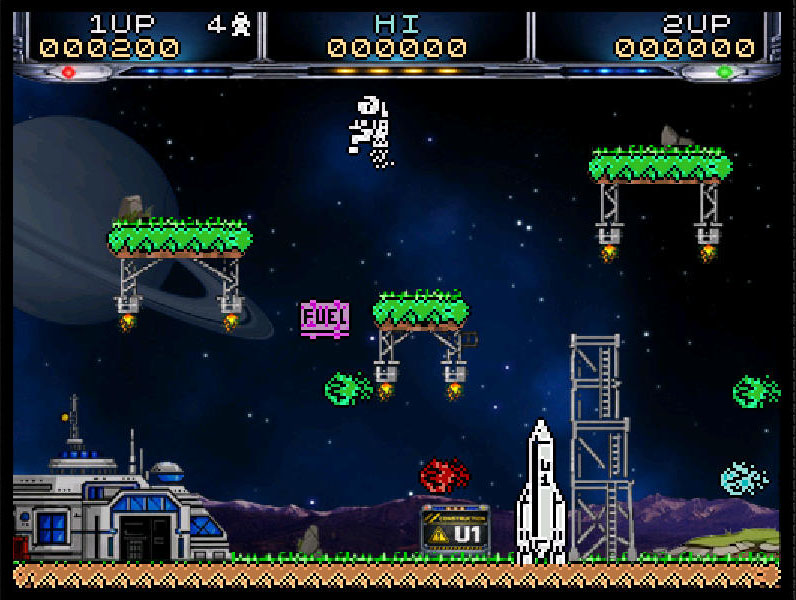
Scene-aware visual transformation — a unique system where backgrounds, palettes and shaders switch automatically as the game moves between menus, levels and scenes. The original game runs completely unmodified.
0
FX Components
0
FX Slots
0
Max Markers
How It Works
Five Components. One Pipeline.
A real-time visual enhancement layer applied on top of the ZX Spectrum emulator. Transform the appearance of classic games dramatically — while the original game code, timing and gameplay remain completely unchanged. Each component builds on the result of the previous, forming a layered processing pipeline that transforms the visual output.
Step 1 — Colour Palette
Redefines the base colours. Applied first in the pipeline — affects every subsequent component.
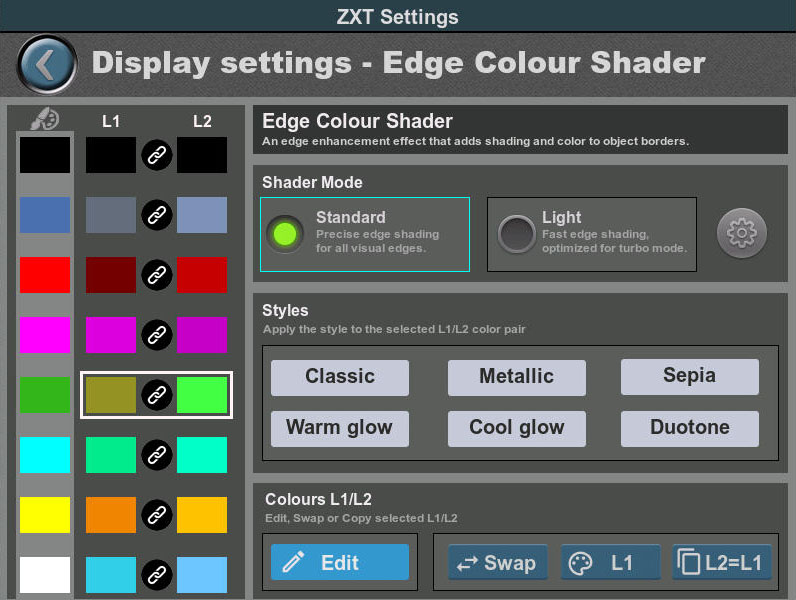
Step 2 — Edge Colour Shader
Detects pixel edges and assigns L1/L2 shading levels to create outlines and visual depth.
Step 3 — Foreground Transparency
Controls how strongly the visible ZX image blends with the background. Range: 0%–100%.
Step 4 — In-game Backgrounds
High-resolution images placed behind the game, revealed through transparent ZX colours.
Step 5 — FX Manager
Detects screen markers and instantly switches complete FX configurations during gameplay.
01
Colour Palette
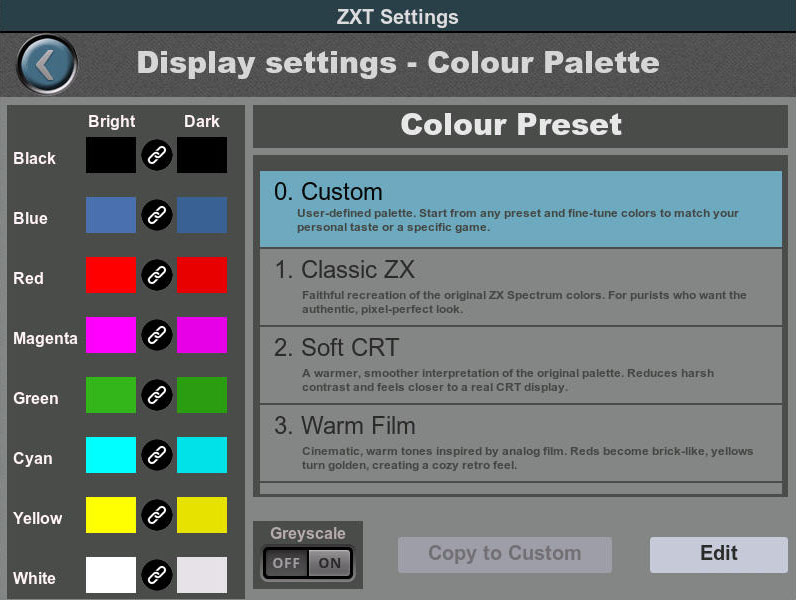
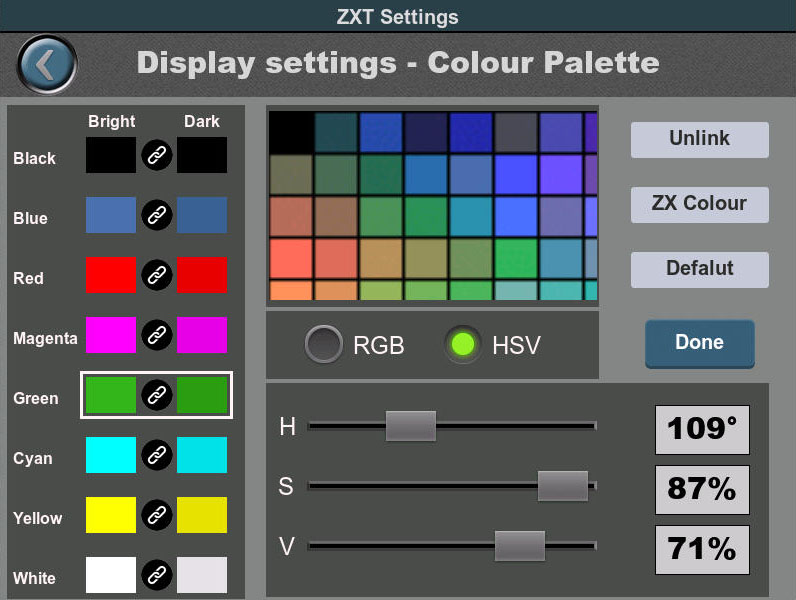
The Colour Palette defines the base colours used to display ZX Spectrum graphics. It is the first step in the pipeline and affects the overall visual character of the game, as well as how the Edge Colour Shader behaves.
The Custom preset is fully editable — individual Bright/Dark variants per colour, RGB and HSV modes, link/unlink control.
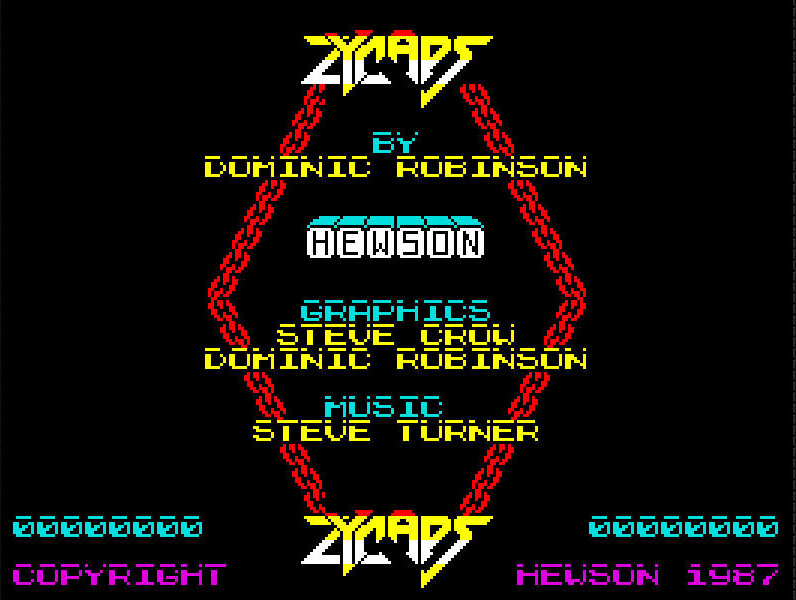
Original ZX
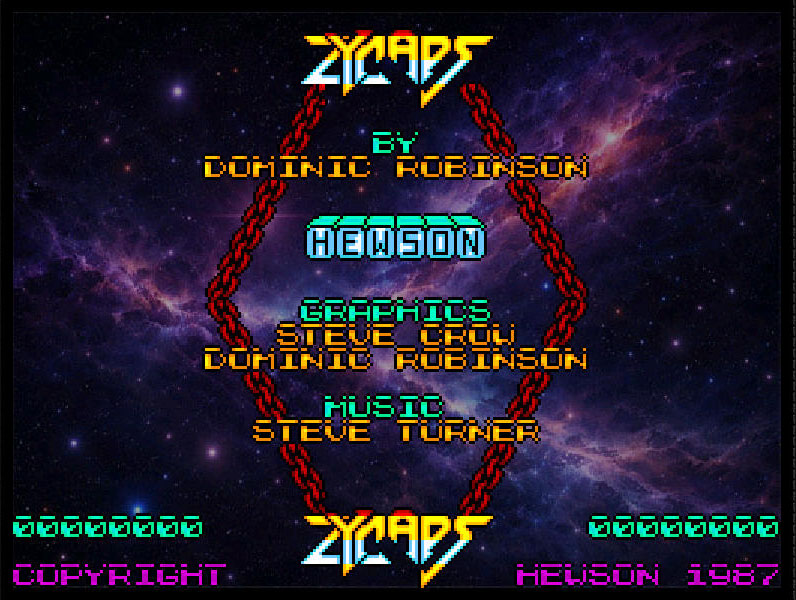
ZX Touch FX
02
Edge Colour Shader
The shader analyses each pixel and its neighbours, detecting colour transitions. Edge pixels are classified as L1 or L2 and assigned custom colours — creating outlines that separate foreground objects from the background, and adding shading depth to flat ZX Spectrum sprites.
Standard Mode
Full image analysis. Detects edges even in flat areas. Best visual quality — recommended.
Lite Mode
Simplified detection. Significantly faster — for turbo or performance-critical gameplay.
6 Built-in Shader Styles
ClassicMetallicWarm GlowCool GlowSepiaDuotone
03
Foreground Transparency
Controls how strongly the visible parts of the ZX Spectrum image blend with the background. At 0% the game image is fully visible. At 100% it disappears entirely — replaced by the background artwork.
0% — Full Game Visible
Standard display. ZX Spectrum image at full opacity over the background.
10–25% — Subtle Blend
Softens the ZX image. Helps visually integrate foreground with detailed backgrounds.
100% — Full Replacement
ZX image completely hidden. Only background visible. Ideal for title screens and menus.
0% — Full Game Visible
100% — Full Replacement
Original ZX
Scene-Matched + Atmospheric
04
In-game Backgrounds
Background images replace flat ZX colour areas with high-resolution artwork. Select one or two ZX colours as transparent — those areas reveal the background. Edge pixels always remain visible as outlines, keeping objects clearly defined.
Scene-Matched
Background elements precisely aligned with game graphics. Creates a near-remake appearance.
Atmospheric
General textures, gradients or environments — works across multiple scenes.
Combined
Scene-specific elements for key areas, atmospheric textures everywhere else.
Recommended background resolution: 512×384px
05
FX Manager
The most powerful component. Instead of one visual style for the entire game, FX Manager monitors every frame for screen markers — captured fragments of the ZX image. When a marker is detected, it instantly switches background, palette, shader and transparency.
0
Max Markers
0
FX Slots
0
Frame Switch
Up to 50 markers per game, each linked to a unique action
10 FX slots — each stores complete palette, shader and transparency
Instant switching within a single frame when marker is detected
Sequence mode — identical markers auto-advance through levels
FX Quick Controls
Fn Shortcuts
The Fn key enables FX shortcuts on the opposite D-pad. Control all FX features during gameplay without opening any menu.
FX Master Toggle
Instantly enables or disables all FX. A/B comparison at any moment during gameplay.
Palette Preset Cycling
Cycles through all 12 colour presets in real time during gameplay without opening any menu.
Screen Capture
Saves a PNG/BMP/JPG screenshot to SD card. Essential for background design workflow.
Status Display
Small icon in top-right corner confirms whether FX is currently active or toggled off.
For Creators
Getting Started with FX Creation
The complete workflow from a raw game file to a fully enhanced, distributable FX package.
1. Create a base ZTG file
Place the game and at least one background image into a ZTG file. Configure key mappings and basic preferences.
2. Build the base visual style
Work on Colour Palette, Edge Shader, Transparency and background. Establish one consistent look first.
3. Design backgrounds with PNG screenshots
Capture a PNG from the console and use it as a reference layer in your image editor for precise background alignment.
4. Store configurations into FX Slots
Save each distinct visual style into a numbered slot. Up to 10 slots available per game.
5. Capture markers and link to actions
Pause the game, position the cursor over a stable screen element, capture as a marker and link it to an action — defining the background image, transparent colour and FX slot for that scene.
6. Test in RAM
Use a ZTG file without stored parameters. Adjust freely and iterate without rewriting the file each time.
7. Finalise and distribute
Enable parameter saving, update the ZTG file and verify clean behaviour from startup. Ready to share.
Ready to explore?
See FX in Action
Browse our collection of ready-made FX game packages — free to download. Or dive into the FX Guide for everything you need to build your own.